Jetpack Compose 入门:Scaffold & Snackbar

Scaffold(脚手架),提供一个基本的布局:

1
2
3
4
5
6
7
8
9
10
11
12
Scaffold(
topBar = {},
bottomBar = {},
floatingActionButton = {},
snackbarHost = {}
) { paddingValues ->
Column(
modifier = modifier.padding(paddingValues)
) {

}
}

示例代码:

1
2
3
4
5
6
7
8
9
10
11
12
13
14
15
16
17
18
19
20
21
22
23
24
25
26
27
28
29
30
31
32
33
34
35
36
37
38
39
40
41
42
43
44
45
46
47
48
49
50
51
52
53
54
55
56
57
58
59
60
61
62
63
64
65
66
67
68
69
70
71
72
73
@OptIn(ExperimentalMaterial3Api::class)
@Composable
fun ScaffoldScreen(
modifier: Modifier = Modifier
) {
val snackbarHostState = remember { SnackbarHostState() }
var showSnackbar by remember { mutableStateOf(false) }

Scaffold(
topBar = {
TopAppBar(
title = {
Text(text = "ww.8ug.icu")
},
navigationIcon = {
IconButton(onClick = { /*TODO*/ }) {
Icon(imageVector = Icons.Default.ArrowBack, contentDescription = null)
}
},
actions = {
IconButton(onClick = { /*TODO*/ }) {
Icon(imageVector = Icons.Default.Search, contentDescription = null)
}
}
)
},
bottomBar = {
BottomAppBar {
IconButton(onClick = { /*TODO*/ }) {
Icon(imageVector = Icons.Default.Undo, contentDescription = null)
}
IconButton(onClick = { /*TODO*/ }) {
Icon(imageVector = Icons.Default.Redo, contentDescription = null)
}
}
},
floatingActionButton = {
FloatingActionButton(onClick = { /*TODO*/ }) {
Icon(imageVector = Icons.Default.Send, contentDescription = null)
}
},
snackbarHost = { SnackbarHost(snackbarHostState)}
) { paddingValues ->
Column(
modifier = modifier.padding(paddingValues)
) {
Button(onClick = { showSnackbar = true }) {
Text(text = "Show Snackbar")
}
}

LaunchedEffect(showSnackbar){
if (showSnackbar){
val result = snackbarHostState.showSnackbar(
message = "欢迎来到 www.8ug.icu",
actionLabel = "关闭",
duration = SnackbarDuration.Indefinite,
withDismissAction = true
)

showSnackbar = when(result){
SnackbarResult.Dismissed -> {
false
}

SnackbarResult.ActionPerformed -> {
false
}
}
}
}
}
}

showSnackbar() 中的 duration 设为 SnackbarDuration.Indefinite (不自动关闭),最好把 withDismissAction 设为 true,另外还有 SnackbarDuration.Long SnackbarDuration.Short,一段时间后会自行关闭。

参考文档:https://developer.android.google.cn/jetpack/compose/layouts/material?hl=zh-cn

Demo:https://github.com/hefengbao/jetpack-compose-demo.git 中的 ScaffoldScreen

Jetpack Compose 入门:Navigation 导航

使用 Naigation 导航把全前面的示例页面串联起来,如上图所示。

首先引入 navigation-compose , 在应用模块(当前项目是 app 目录下)的 build.gradle 文件中使用以下依赖项:

1
2
3
4
5
6
dependencies {
......

val nav_version = "2.5.3"
implementation("androidx.navigation:navigation-compose:$nav_version")
}

可以如上图所示,建立 route 文件夹,用来管理导航逻辑,代码示例如下:

1
2
3
4
5
6
7
8
9
10
11
12
13
14
15
16
17
18
19
20
21
22
23
24
25
26
27
28
29
30
31
32
33
34
35
36
37
38
39
40
41
42
43
44
45
46
private const val ROUTE_HOME = "home"
private const val ROUTE_BASIC = "basic"
private const val ROUTE_TEXT= "text"
private const val ROUTE_TEXT_FIELD= "text_field"
private const val ROUTE_IMAGE= "image"
private const val ROUTE_ICON= "icon"
private const val ROUTE_BUTTON= "button"
private const val ROUTE_SELECTION= "selection"
private const val ROUTE_APPBAR= "appbar"
private const val ROUTE_SCAFFOLD= "scaffold"

@Composable
fun AppNavHost(
navController: NavHostController
) {
NavHost(
navController = navController,
startDestination = ROUTE_HOME
){
composable(route = ROUTE_HOME){
HomeScreen(
onBasicClick = { navController.navigate(ROUTE_BASIC) },
onTextClick = { navController.navigate(ROUTE_TEXT) },
onTextFieldClick = { navController.navigate(ROUTE_TEXT_FIELD)},
onImageClick = { navController.navigate(ROUTE_IMAGE) },
onIconClick = { navController.navigate(ROUTE_ICON) },
onButtonClick = { navController.navigate(ROUTE_BUTTON) },
onSelectionClick = { navController.navigate(ROUTE_SELECTION) },
onAppBarClick = { navController.navigate(ROUTE_APPBAR) },
onScaffoldClick = { navController.navigate(ROUTE_SCAFFOLD)}
)
}

composable(route = ROUTE_BASIC){
BasicScreen()
}

// 省略若干代码

composable(ROUTE_SCAFFOLD){
ScaffoldScreen(
onBackClick = navController::navigateUp
)
}
}
}

编辑 MainActivity.kt

1
2
3
4
5
6
7
8
9
10
11
class MainActivity : ComponentActivity() {
override fun onCreate(savedInstanceState: Bundle?) {
super.onCreate(savedInstanceState)
setContent {
val navController = rememberNavController()
JetpackcomposedemoTheme {
AppNavHost(navController)
}
}
}
}

val navController = rememberNavController() 获取 NavHostControoler 。

navController.navigate() 导航到具体的页面

navController::navigateUpnavController.navigateUp() 返回上一个页面。

参考文档 使用 Compose 进行导航

Demo:https://github.com/hefengbao/jetpack-compose-demo

Jetpack Compose 入门:LazyColumn & LazyRow

LazyColumn 生成的是垂直滚动列表,而 LazyRow 生成的是水平滚动列表。

滚动状态通过 rememberLazyListState() 获取。

如果要嵌套列表,如果最外层是 LazyColumn,,那么嵌套的 LazyColumn 或者 LazyRow 必须指定最大高度;如果最外层是 LazyRow ,那么嵌套的 LazyColumn 或者 LazyRow 必须指定最大宽度。

item() 用于添加单个列表项,items()itemsIndexed() 用于添加多个列表项:

示例代码:

1
2
3
4
5
6
7
8
9
10
11
12
13
14
15
16
17
18
19
20
21
22
23
24
25
26
27
28
29
30
31
32
33
34
35
36
37
38
39
40
41
42
43
44
45
46
47
48
49
50
51
52
53
54
55
56
57
58
59
60
61
62
63
64
65
66
@Composable
fun ListScreen(
modifier: Modifier = Modifier
) {
val lazyColumnState = rememberLazyListState()
val lazyRowState = rememberLazyListState()

val list = listOf(1,2,3,4,5,6,7,8,9,10)

LazyColumn(
state = lazyColumnState,
content = {
item {
LazyRow(
modifier = modifier.height(250.dp),
state = lazyRowState,
content = {
itemsIndexed(
items = list,
key = {index: Int, item: Int -> index },
){index,item ->
Text(
text = "Row $item",
modifier = modifier
.padding(16.dp)
.background(Color.Yellow)
.width(100.dp)
.fillMaxHeight(),
textAlign = TextAlign.Center
)
}
}
)
}

itemsIndexed(
items = list,
key = { index: Int, item: Int -> index}
){index: Int, item: Int ->
Text(
text = "Column itemsIndexed:index = $index,item = $item",
modifier = modifier
.padding(16.dp)
.background(Color.Cyan)
.fillMaxWidth()
)
}
item {
Divider( modifier = modifier.fillMaxWidth())
}

items(
items = list,
key = null
){item: Int ->
Text(
text = "Column items:item = $item",
modifier = modifier
.padding(16.dp)
.background(Color.Green)
.fillMaxWidth()
)
}
}
)
}

参考文档 列表和网格

Demo:https://github.com/hefengbao/jetpack-compose-demo

Jetpack Compose 入门:LazyVerticalGrid & LazyHorizontalGrid

LazyVerticalGridLazyHorizontalGrid 用于显示 Grid 列表;

GridCells.Fixed() 设置要显示的列数;

rememberLazyGridState() 获取滚动状态;

horizontalArrangementverticalArrangement 设置间距。

1
2
3
4
5
6
7
8
9
10
11
12
13
14
15
16
17
18
19
20
21
22
23
24
25
26
27
28
29
30
31
32
33
34
35
36
37
38
39
40
41
42
43
44
45
46
47
48
49
50
51
52
53
54
@Composable
fun GridScreen(
modifier: Modifier = Modifier
) {
val lazyVerticalGridState = rememberLazyGridState()
val lazyHorizontalState = rememberLazyGridState()

val list = listOf(1,2,3,4,5,6,7,8,9,10)

Column(
modifier = modifier.fillMaxWidth()
) {
LazyHorizontalGrid(
modifier = modifier.height(120.dp),
rows = GridCells.Fixed(2),
state = lazyHorizontalState,
horizontalArrangement = Arrangement.spacedBy(16.dp),
verticalArrangement = Arrangement.spacedBy(8.dp),
content = {
items(
items = list,
){item ->
Text(
text = "Grid $item",
modifier = modifier
.height(50.dp)
.width(100.dp)
.background(Color.Yellow),
)
}
}
)

LazyVerticalGrid(
columns = GridCells.Fixed(2),
state = lazyVerticalGridState,
horizontalArrangement = Arrangement.spacedBy(16.dp),
verticalArrangement = Arrangement.spacedBy(8.dp),
content = {
items(
items = list,
){item ->
Text(
text = "Grid $item",
modifier = modifier
.height(200.dp)
.width(100.dp)
.background(Color.Green),
)
}
}
)
}
}

参考文档 列表和网格

Demo:https://github.com/hefengbao/jetpack-compose-demo

Jetpack Compose 入门:Card

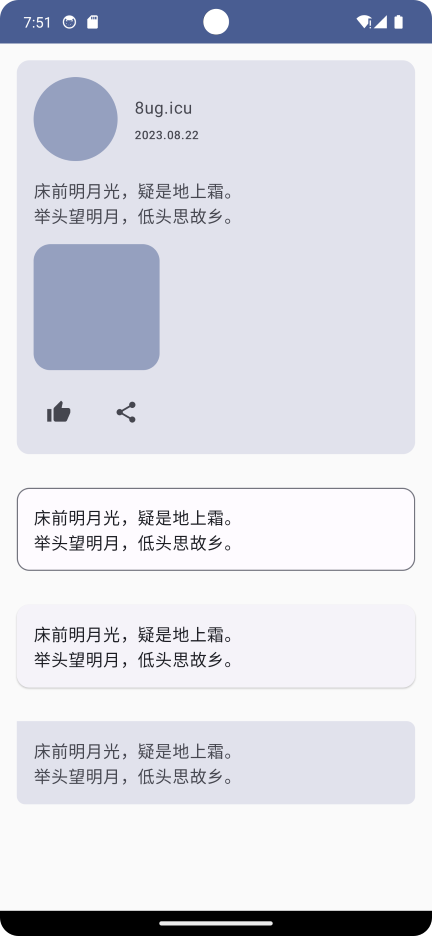
CardOutlinedCardElevatedCard 是 material3 组件,可以通过设置 shape = RoundedCornerShape() 完成聊天气泡效果的 Card。

1
2
3
4
5
6
7
8
9
10
11
12
13
14
15
16
17
18
19
20
21
22
23
24
25
26
27
28
29
30
31
32
33
34
35
36
37
38
39
40
41
42
43
44
45
46
47
48
49
50
51
52
53
54
55
56
57
58
59
60
61
62
63
64
65
66
67
68
69
70
71
72
73
74
75
76
77
78
79
80
81
82
83
84
85
86
87
88
89
90
91
92
93
94
95
96
97
98
99
100
101
102
103
104
105
106
107
108
109
110
111
112
113
114
115
116
117
118
119
@Composable
fun CardScreen(
modifier: Modifier = Modifier
) {
val text = """
床前明月光,疑是地上霜。
举头望明月,低头思故乡。
""".trimIndent()

Column(
modifier = modifier.fillMaxWidth()
) {
Card(
modifier = modifier
.fillMaxWidth()
.padding(16.dp)
) {
Column(
modifier = modifier
.fillMaxWidth()
.padding(16.dp),
verticalArrangement = Arrangement.spacedBy(16.dp)
) {
Row(
verticalAlignment = Alignment.CenterVertically,
horizontalArrangement = Arrangement.spacedBy(16.dp)
) {
AsyncImage(
model = "https://unsplash.com/photos/ZaU21K_4ZpA",
contentDescription = null,
modifier = modifier
.size(80.dp)
.clip(CircleShape)
.background(MaterialTheme.colorScheme.primary.copy(alpha = 0.5f)),
contentScale = ContentScale.Crop,
)

Column(
modifier = modifier
.fillMaxWidth()
.weight(1f),
verticalArrangement = Arrangement.spacedBy(8.dp)
) {
Text(text = "8ug.icu")
Text(text = "2023.08.22", style = MaterialTheme.typography.labelSmall)
}
}

Text(text = text)

AsyncImage(
model = "https://unsplash.com/photos/a-white-and-brown-dog-walking-across-a-lush-green-field-TDOM2os-JYs",
contentDescription = null,
modifier = modifier
.size(120.dp)
.clip(RoundedCornerShape(16.dp))
.background(MaterialTheme.colorScheme.primary.copy(alpha = 0.5f)),
contentScale = ContentScale.Inside
)

Row(
horizontalArrangement = Arrangement.spacedBy(16.dp)
) {
IconButton(onClick = { /*TODO*/ }) {
Icon(imageVector = Icons.Default.ThumbUp, contentDescription = null)
}
IconButton(onClick = { /*TODO*/ }) {
Icon(imageVector = Icons.Default.Share, contentDescription = null)
}
}
}
}

OutlinedCard(
modifier = modifier
.fillMaxWidth()
.padding(16.dp),
) {
Text(
text = text,
modifier = modifier
.fillMaxWidth()
.padding(16.dp)
)
}

ElevatedCard(
modifier = modifier
.fillMaxWidth()
.padding(16.dp),
) {
Text(
text = text,
modifier = modifier
.fillMaxWidth()
.padding(16.dp)
)
}

Card(
modifier = modifier
.fillMaxWidth()
.padding(16.dp),
shape = RoundedCornerShape(
topStart = 0.dp,
topEnd = 8.dp,
bottomStart = 8.dp,
bottomEnd = 8.dp
)
) {
Text(
text = text,
modifier = modifier
.fillMaxWidth()
.padding(16.dp)
)
}
}
}

Demo:https://github.com/hefengbao/jetpack-compose-demo

Jetpack Compose 入门:AlertDialog

AlertDialog 是 material3 组件 androidx.compose.material3.AlertDialog, 用于显示对话框。

onDismissRequest : 点击 AlertDialog 之外的屏幕,一般情况下是 AlertDialog 消失;

confirmButton 确认按钮;

dismissButton 取消按钮;

title 标题;

text 内容区域,这里面可以放置 TextTextField 等各种组件,而不仅仅是 Text;

示例代码:

1
2
3
4
5
6
7
8
9
10
11
12
13
14
15
16
17
18
19
20
21
22
23
24
25
26
27
28
29
30
31
32
33
34
35
36
37
38
39
40
41
42
43
44
45
46
47
48
49
50
51
52
@Composable
fun AlertDialogScreen(
modifier: Modifier = Modifier
) {
var showDialog by remember { mutableStateOf(false) }

Button(onClick = { showDialog = true }) {
Text(text = "显示对话框")
}

if (showDialog){
AlertDialog(
modifier = modifier,
onDismissRequest = { showDialog = false },
confirmButton = {
Button(onClick = { showDialog = false }) {
Text(text = "确认")
}
},
dismissButton = {
TextButton(onClick = { showDialog = false }) {
Text(text = "取消")
}
},
icon = {
Icon(imageVector = Icons.Default.PrivacyTip, contentDescription = null)
},
title = {
Text(text = "用户协议")
},
text = {
Column {
Text(
text = """
1、关于我们;
2、账号安全;
3、隐私政策
4、生效时间
""".trimIndent()
)

Row(
verticalAlignment = Alignment.CenterVertically
) {
Checkbox(checked = false, onCheckedChange = {})
Text(text = "请阅读并同意用于协议")
}
}
},
)
}
}

Demo:https://github.com/hefengbao/jetpack-compose-demo

Jetpack Compose 入门:NavigationBar & Badge

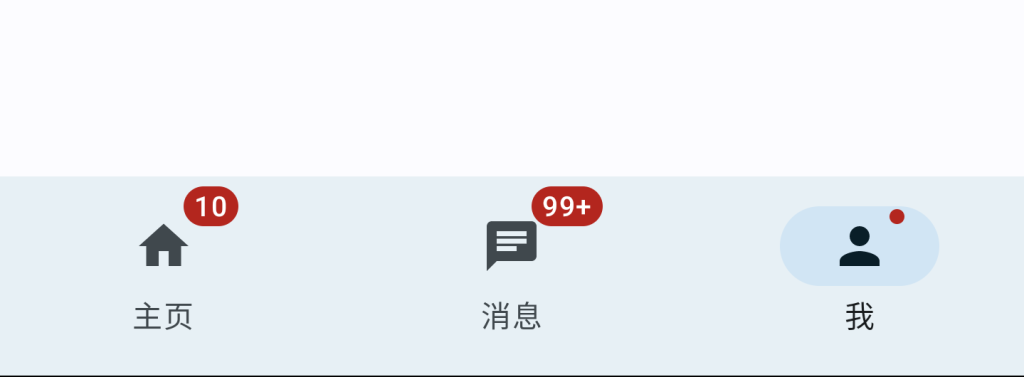
NavigationBar 实现底部导航栏,一般建议放置 3~ 5 个菜单,通过 BadgedBox(Badge) 显示消息数目(提示)。

1
2
3
4
5
6
7
8
9
10
11
12
13
14
15
16
17
18
19
20
21
22
23
24
25
26
27
28
29
30
31
32
33
34
35
36
37
38
39
40
41
42
43
44
45
46
47
48
49
50
51
52
53
54
55
56
57
58
59
60
61
62
63
64
65
66
67
68
69
70
@OptIn(ExperimentalMaterial3Api::class)
@Composable
fun NavigationBarScreen(
modifier: Modifier = Modifier
) {
val list = listOf(
NavigationItem(icon = Icons.Default.Home, label = "主页", hasNew = false, count = 10),
NavigationItem(icon = Icons.Default.Chat, label = "消息", hasNew = false, count = 100),
NavigationItem(icon = Icons.Default.Person, label = "我", hasNew = true, count = null),
)

var selectedItem by remember { mutableStateOf(0) }

Scaffold(
topBar = {},
bottomBar = {
NavigationBar {
list.forEachIndexed { index, navigationItem ->
NavigationBarItem(
selected = selectedItem == index,
onClick = { selectedItem = index },
icon = {
if (navigationItem.hasNew || navigationItem.count != null) {
BadgedBox(
badge = {
if (navigationItem.count != null) {
Badge {
Text(
text = if (navigationItem.count >= 100){
"99+"
}else{
navigationItem.count.toString()
}
)
}
} else {
Badge()
}
}
) {
Icon(imageVector = navigationItem.icon, contentDescription = null)
}
}

},
label = {
Text(text = navigationItem.label)
}
)
}
}
}
) {paddingValues ->
Box(
modifier = modifier
.padding(paddingValues)
.fillMaxSize(),
contentAlignment = Alignment.Center
){
Text(text = list[selectedItem].label)
}
}
}

data class NavigationItem(
val icon: ImageVector,
val label: String,
val hasNew: Boolean = false,
val count: Int? = null
)

Demo:https://github.com/hefengbao/jetpack-compose-demo

Jetpack Compose 入门:权限请求

使用谷歌官方库 Accompanist 来请求权限,文档 https://google.github.io/accompanist/permissions/

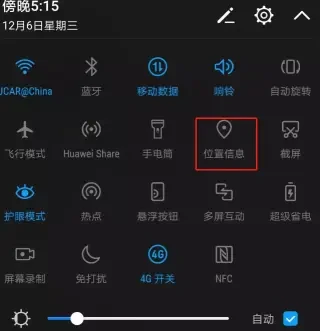
示例代码请求定位权限,因为要正常使用定位功能,不仅需要用户授予权限,还要用户打开【位置信息】(如下图),通过代码来判断是否已开启,如果没有开启,则提示用户去设置:

AndroidManifest.xml 声明所需的权限:

1
2
<uses-permission android:name="android.permission.ACCESS_FINE_LOCATION" />
<uses-permission android:name="android.permission.ACCESS_COARSE_LOCATION" />
1
2
3
4
5
6
7
8
9
10
11
12
13
14
15
16
17
18
19
20
21
22
23
24
25
26
27
28
29
30
31
32
33
34
35
36
37
38
39
40
41
42
43
44
45
46
47
48
49
50
51
52
53
54
55
56
57
58
59
60
61
62
63
64
65
66
67
68
69
70
71
72
73
74
75
76
77
78
79
80
81
82
83
84
85
86
87
88
89
90
91
92
93
94
95
96
97
98
99
100
101
102
103
104
105
106
107
108
109
110
111
112
113
114
115
116
117
118
119
120
121
122
123
124
125
126
127
128
129
130
131
132
133
134
135
136
137
138
139
140
141
142
143
144
145
146
147
148
149
150
151
@OptIn(ExperimentalPermissionsApi::class)
@Composable
fun PermissionScreen(
modifier: Modifier = Modifier
) {
var permissionRequested = false

val permissionState = rememberPermissionState(
android.Manifest.permission.ACCESS_FINE_LOCATION
){
Log.i("Permission","State = $it")
permissionRequested = true
}

val context = LocalContext.current

var shouldOpenLocationSettings by remember { mutableStateOf(false) }

var shouldShowRationale by remember { mutableStateOf(false) }

var shouldShowAppSettings by remember { mutableStateOf(false) }

Button(
onClick = {
if (locationServiceEnabled(context)){
if (permissionState.status.isGranted){
// 定位逻辑
Log.i("Permission","定位逻辑")
}else{
if (permissionState.status.shouldShowRationale){
Log.i("Permission", "shouldShowRationale")
shouldShowRationale = true
}else{
Log.i("Permission","第一次请求亦或者是第三次请求?")
if (!permissionRequested){
permissionState.launchPermissionRequest()
}else{
Log.i("Permission","去设置")
shouldShowAppSettings = true
}
}
}
}else{
// 没有开启 【位置信息】,则提示去设置
shouldOpenLocationSettings = true
}
}
) {
Icon(imageVector = Icons.Default.LocationOn, contentDescription = null)
Text(text = "获取位置")
}

if (shouldOpenLocationSettings){
AlertDialog(
onDismissRequest = { shouldOpenLocationSettings = false },
confirmButton = {
Button(
onClick = {
try {
context.startActivity(
Intent(Settings.ACTION_LOCATION_SOURCE_SETTINGS)
)
}catch (e: Exception){
context.startActivity(
Intent(Settings.ACTION_SETTINGS)
)
}
}
) {
Text(text = "设置")
}
},
dismissButton = {
TextButton(onClick = { shouldOpenLocationSettings = false }) {
Text(text = "取消")
}
},
text = {
Text(text = "您的系统设置没有开启【位置信息】,请前往设置界面开启")
}
)
}

if (shouldShowAppSettings){
AlertDialog(
onDismissRequest = { shouldShowAppSettings = false },
confirmButton = {
Button(
onClick = {
context.startActivity(
Intent(Settings.ACTION_APPLICATION_DETAILS_SETTINGS).apply {
data = Uri.fromParts("package", context.packageName, null)
}
)
shouldShowAppSettings = false
}
) {
Text(text = "去设置")
}
},
dismissButton = {
TextButton(onClick = { shouldShowAppSettings = false }) {
Text(text = "取消")
}
},
text = {
Text(text = "您已拒绝授予定位权限,请前往设置界面授权")
}
)
}

if (shouldShowRationale){
AlertDialog(
onDismissRequest = { shouldShowRationale = false },
confirmButton = {
Button(
onClick = {
shouldShowRationale = false
permissionState.launchPermissionRequest()
}
) {
Text(text = "授权")
}
},
dismissButton = {
TextButton(onClick = { shouldShowRationale = false }) {
Text(text = "取消")
}
},
text = {
Text(text = "定位需要您授予权限才嗯能使用")
}
)
}
}

private fun locationServiceEnabled(context: Context): Boolean = when{
Build.VERSION.SDK_INT >= Build.VERSION_CODES.P -> {
val locationManager = context.getSystemService(Context.LOCATION_SERVICE) as LocationManager
locationManager.isLocationEnabled
}
else -> {
try {
Settings.Secure.getInt(
context.contentResolver, Settings.Secure.LOCATION_MODE
) != Settings.Secure.LOCATION_MODE_OFF
}catch (e: Settings.SettingNotFoundException){
false
}
}
}

Limitations
This permissions wrapper is built on top of the available Android platform APIs. We cannot extend the platform’s capabilities. For example, it’s not possible to differentiate between the it’s the first time requesting the permission vs the user doesn’t want to be asked again use cases.

如文档所说,这个方案不是完美解决方案,在用户选择了“拒绝且不在提醒” 时,需要做特别处理。我使用 permissionRequested 做了一个简单的判断,但是在关闭应用后再次打开,需要点击两次才能出发正常的逻辑。

参考文档:

请求运行时权限

Demo:https://github.com/hefengbao/jetpack-compose-demo

Laravel 的 Collection::times() 使用

Collection::times()允许您通过运行指定次数的回调来创建新的Collection。

1
2
3
4
5
6
7
8
9
10
11
12
13
14
15
use Illuminate\Support\Collection;
use Illuminate\Support\Str;

$randomStrings = Collection::times(
number: 10,
callback: fn (): string => Str::random(8),
);

// $randomStrings is now a Collection with 10 random strings:
// [
// "aBcDeFgH",
// "iJkLmNoP",
// "qRsTuVwX",
// and so on...
// ]

正如我们在上面的例子中看到的,该方法采用两个参数:

  1. number-运行回调的次数。

  2. callback-每次运行以在集合中生成新项的回调。

回调还接受当前迭代次数作为参数。如果您需要使用当前迭代次数来生成项目,这将非常有用。

1
2
3
4
5
6
7
8
9
10
11
12
13
14
use Illuminate\Support\Collection;

$intervals = Collection::times(
number: 10,
callback: fn (int $index): int => $index * 15,
);

// $intervals is now a Collection with 10 intervals:
// [
// 15,
// 30,
// 45,
// and so on...
// ]

来自:
https://ashallendesign.co.uk/blog/using-collection-times-in-laravel

用 Traits 增强 Laravel 应用程序

Traits 用来解决代码复用问题。

通常把 Traits 放在 app/Models/Traits 目录下。

大概框架如下:

1
2
3
4
5
6
7
8
9
10
11
12
<?php

namespace App\Models\Traits;

trait HasUuid
{
public static function booted()
{
...
}

}

完整的 UUID trait 示例:

1
2
3
4
5
6
7
8
9
10
11
12
13
14
15
16
17
18
19
20
21
22
23
24
25
26
27
<?php

namespace App\Models\Traits;

use Illuminate\Database\Eloquent\Model;
use Illuminate\Support\Str;

trait HasUuid
{
public function getIncrementing(): bool
{
return false;
}

public function getKeyType(): string
{
return 'string';
}

public static function booted()
{
static::creating(function (Model $model) {
// Set attribute for new model's primary key (ID) to an uuid.
$model->setAttribute($model->getKeyName(), Str::uuid()->toString());
});
}
}

原文:

https://dcblog.dev/enhancing-laravel-applications-with-traits-a-step-by-step-guide