Jetpack Compose 入门:Text & ClickableText

compose 版本:

https://developer.android.google.cn/jetpack/androidx/releases/compose?hl=zh-cn

1
implementation platform('androidx.compose:compose-bom:2023.05.00')

Textandroidx.compose.material3.Text 中的控件,用来显示文本内容,ClickableText 用于显示文本内容中部分内容需要添加点击事件。

1
2
3
4
5
6
7
8
9
10
11
12
13
14
15
16
17
18
19
20
21
22
23
24
25
26
27
28
29
30
31
32
33
34
35
36
37
38
39
40
41
42
43
44
45
46
47
48
49
50
51
52
53
54
55
56
57
58
59
60
61
62
63
64
65
66
67
68
69
70
71
72
73
74
@Composable
fun TextScreen(
modifier: Modifier = Modifier
) {
val context = LocalContext.current

Column(
modifier = modifier.background(Color.White),
verticalArrangement = Arrangement.spacedBy(8.dp)
) {
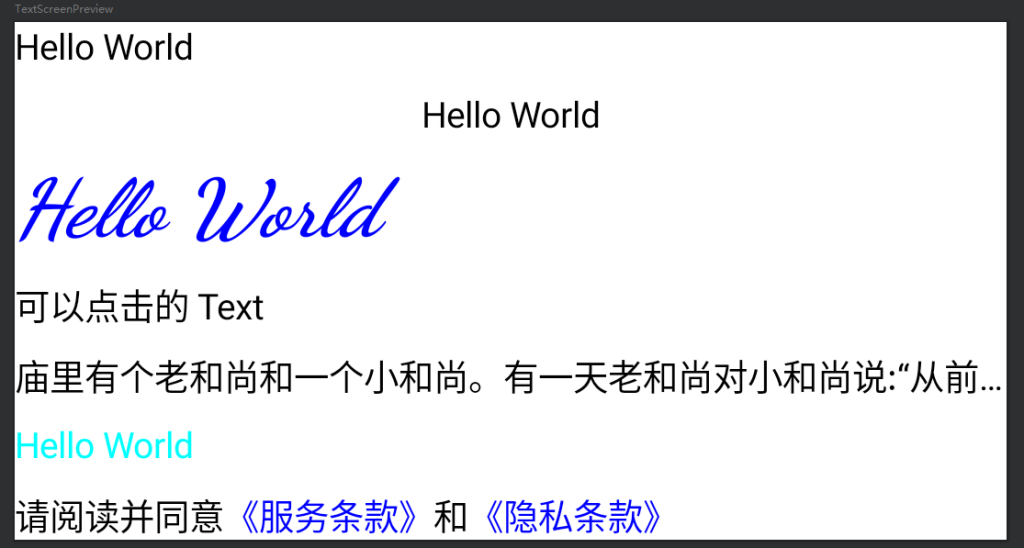
Text(text = "Hello World")
Text(
text = "Hello World",
modifier = modifier.fillMaxWidth(),
textAlign = TextAlign.Center
)
Text(
text = "Hello World",
color = Color.Blue,
fontStyle = FontStyle.Italic,
fontFamily = FontFamily.Cursive,
fontWeight = FontWeight.ExtraBold,
fontSize = 32.sp
)
Text(
text = "可以点击的 Text",
modifier = modifier.clickable {
Toast.makeText(context,"点击了",Toast.LENGTH_SHORT).show()
}
)
Text(
text = "庙里有个老和尚和一个小和尚。有一天老和尚对小和尚说:“从前有座山.山里有座庙,庙里有个老和尚和一个小和尚,有一天老和尚对小和尚说:“从前有座山.山里有座庙,庙里有个老和尚和一个小和尚......““。",
maxLines = 1,
overflow = TextOverflow.Ellipsis
)
Text(text = AnnotatedString("Hello World", spanStyle = SpanStyle(color = Color.Cyan)))
ClickableTextSample(modifier = modifier)
}
}

@Composable
fun ClickableTextSample(
modifier: Modifier
) {
val tag = "ClickableText"
val text = buildAnnotatedString {
append("请阅读并同意")
pushStringAnnotation(tag = tag, annotation = "https://www.baidu.com")
withStyle(style = SpanStyle(color = Color.Blue)){
append("《服务条款》")
}
pop()
append("和")
pushStringAnnotation(tag,"https://www.bing.com")
withStyle(style = SpanStyle(color = Color.Blue)){
append("《隐私条款》")
}
pop()
}

val uriHandler = LocalUriHandler.current

ClickableText(text = text, onClick = {index ->
text.getStringAnnotations(tag, index, index).map {
uriHandler.openUri(it.item)
}
})
}

@Preview
@Composable
private fun TextScreenPreview() {
TextScreen()
}

知识点:

1、获取 context val context = LocalContext.current

2、textAlign 设置文本对齐方式,默认是向左对齐,可以通过 textAlign = TextAlign.Center 等设置对齐方式;

3、color = Color.Blue 设置文本颜色;

4、fontStyle = FontStyle.Italic 设置字体样式;

5、fontFamily = FontFamily.Cursive 设置字体;

6、fontWeight = FontWeight.ExtraBold 设置字体粗细;

7、fontSize = 32.sp 设置字体大小;

8、 maxLines = 1overflow = TextOverflow.Ellipsis 设置最多显示几行,以及超过时的处理方式

9、ClickableText

示例代码: https://github.com/hefengbao/jetpack-compose-demo.git

提升:

https://juejin.cn/post/7057112301446365192

Jetpack Compose 入门: TextField & OutlinedTextField

compose 版本:

https://developer.android.google.cn/jetpack/androidx/releases/compose?hl=zh-cn

implementation platform(‘androidx.compose:compose-bom:2023.05.00’)

TextFieldandroidx.compose.material3.TextField 中的控件,OutlinedTextFieldandroidx.compose.material3.OutlinedTextField中的控件,用来编辑文本等。

1
2
3
4
5
6
7
8
9
10
11
12
13
14
15
16
17
18
19
20
21
22
23
24
25
26
27
28
29
30
31
32
33
34
35
36
37
38
39
40
41
42
43
44
45
@OptIn(ExperimentalMaterial3Api::class)
@Composable
fun TextFieldScreen(
modifier: Modifier = Modifier
) {
var account by rememberSaveable { mutableStateOf("") }
var password by rememberSaveable { mutableStateOf("") }

Column(
modifier = modifier.fillMaxWidth(),
verticalArrangement = Arrangement.spacedBy(16.dp)
) {
TextField(
value = account,
onValueChange = { account = it},
label = {
Text(text = "账号")
}
)
TextField(
value = password,
onValueChange = { password = it },
label = {
Text(text = "密码")
},
keyboardOptions = KeyboardOptions(keyboardType = KeyboardType.Password),
visualTransformation = PasswordVisualTransformation('*')
)
TextField(value = "", onValueChange = {}, enabled = false)
OutlinedTextField(
value = "",
onValueChange = {},
maxLines = 15,
placeholder = {
Text(text = "请输入...")
}
)
}
}

@Preview
@Composable
private fun TextFieldScreenPreview() {
TextFieldScreen()
}

知识点:

1、状态管理,文档:https://developer.android.google.cn/jetpack/compose/state?hl=zh-cn ,在上面的示例代码中, var account by rememberSaveable { mutableStateOf("") } 用来初始化和保存账号数据,如果是编辑的话,可能就是这样: var name by rememberSaveable { mutableStateOf("8ug_icu") }

2、label 设置标签,placeholder 设置提示。

3、enabled 设置是否可编辑,实际使用中,也是通过状态管理来处理逻辑:

1
2
3
4
5
 var enabled by rememberSaveable { mutableStateOf(false) }

// 校验逻辑

enabled = true

4、密码输入框:

1
2
keyboardOptions = KeyboardOptions(keyboardType = KeyboardType.Password),
visualTransformation = PasswordVisualTransformation('*')

示例代码: https://github.com/hefengbao/jetpack-compose-demo.git

Jetpack Compose 入门: Image

Image 用于显示图片,是 androidx.compose.foundation.Image 中的控件。文档:https://developer.android.google.cn/jetpack/compose/graphics/images?hl=zh-cn

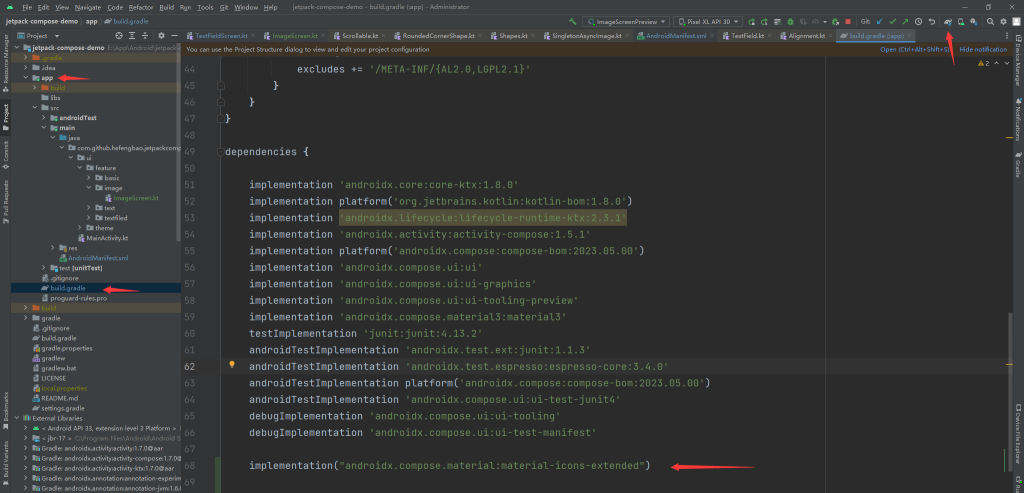
最基本的是显示图标(Icon),Compose 的 androidx.compose.material.icons 包提供了常用的图标,默认以引入项目,如果要使用更多,可以引入扩展包:

1
implementation("androidx.compose.material:material-icons-extended")

要查找那些图标可用,按如下步骤操作:

找到要使用的图标,记住名称,比如 add,则可以通过 androidx.compose.material.icons.Icons.Default.Add 使用,具体看下面代码。

要加载网络图片,推荐使用 Coil 库:

1
2
implementation("io.coil-kt:coil:2.4.0")
implementation("io.coil-kt:coil-compose:2.4.0")
1
2
3
4
5
6
7
8
9
10
11
12
13
14
15
16
17
18
19
20
21
22
23
24
25
26
27
28
29
30
31
32
33
34
35
36
37
38
39
40
41
42
43
44
45
46
47
48
@Composable
fun ImageScreen(
modifier: Modifier = Modifier
) {
Column(
modifier = modifier.fillMaxSize().scrollable(rememberScrollState(),Orientation.Vertical),
verticalArrangement = Arrangement.spacedBy(16.dp)
) {
Image(
modifier = modifier.size(48.dp),
imageVector = androidx.compose.material.icons.Icons.Default.Add,
contentDescription = "Notifications",
colorFilter = ColorFilter.tint(color = MaterialTheme.colorScheme.primary)
)

Image(painter = painterResource(id = R.drawable.ic_launcher_background), contentDescription = "painterResource")

AsyncImage(
model = "https://pic.616pic.com/ys_bnew_img/00/28/60/6p82GlZ565.jpg",
contentDescription = null
)

AsyncImage(
model = "https://pic.616pic.com/ys_bnew_img/00/28/60/6p82GlZ565.jpg",
contentDescription = null,
contentScale = ContentScale.Crop,
modifier = modifier
.size(100.dp)
.clip(CircleShape)
.align(Alignment.CenterHorizontally)
)

AsyncImage(
model = "https://pic.616pic.com/ys_bnew_img/00/28/60/6p82GlZ565.jpg",
contentDescription = null,
modifier = modifier
.size(100.dp)
.clip(RoundedCornerShape(16.dp)),
contentScale = ContentScale.Inside
)
}
}

@Preview
@Composable
private fun ImageScreenPreview() {
ImageScreen()
}

知识点:

1、imageVector 使用 androidx.compose.material.icons.Icons 图标;

2、painter 配合 painterResource 加载 res/drawable 目录下的图标;

3、圆形头像,添加圆角,contentScale 设置图片的填充方式等参考文档:https://developer.android.google.cn/jetpack/compose/graphics/images/customize?hl=zh-cn

4、 Coil 提供的 AsyncImage 加载网络图片。

Jetpack Compose 入门:获取 Context 、Lifecycle、UriHandler 等

获取 Context

1
val context = LocalContext.current

获取 Lifecycle

1
val lifecycle = LocalLifecycleOwner.current.lifecycle

获取 UriHandler

1
val uriHandler = LocalUriHandler.current

打开网址:

1
uriHandler.openUri("https://www.8ug.icu")

获取软键盘 SoftwareKeyboardController

1
val keyboard = LocalSoftwareKeyboardController.current

隐藏软键盘:

1
keyboard?.hide()

其他可用的

1
2
3
4
5
6
7
8
9
10
11
12
13
LocalAccessibilityManager.current
LocalClipboardManager.current
LocalDensity.current
LocalFocusManager.current
LocalFontFamilyResolver.current
LocalHapticFeedback.current
LocalInputModeManager.current
LocalLayoutDirection.current
LocalTextInputService.current
LocalPlatformTextInputPluginRegistry.current
LocalTextToolbar.current
LocalViewConfiguration.current
LocalWindowInfo.current

Jetpack Compose 入门:Image 使用 Icon (vectorDrawables)

Jetpack Compose Image 显示矢量(vectorDrawables)图标(Icon),分 imageVectorpainter 两种方式。

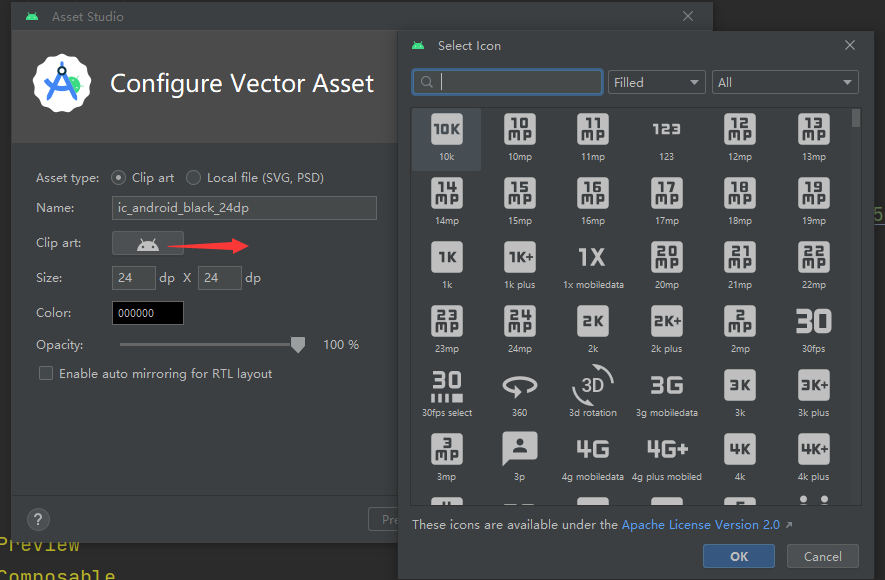
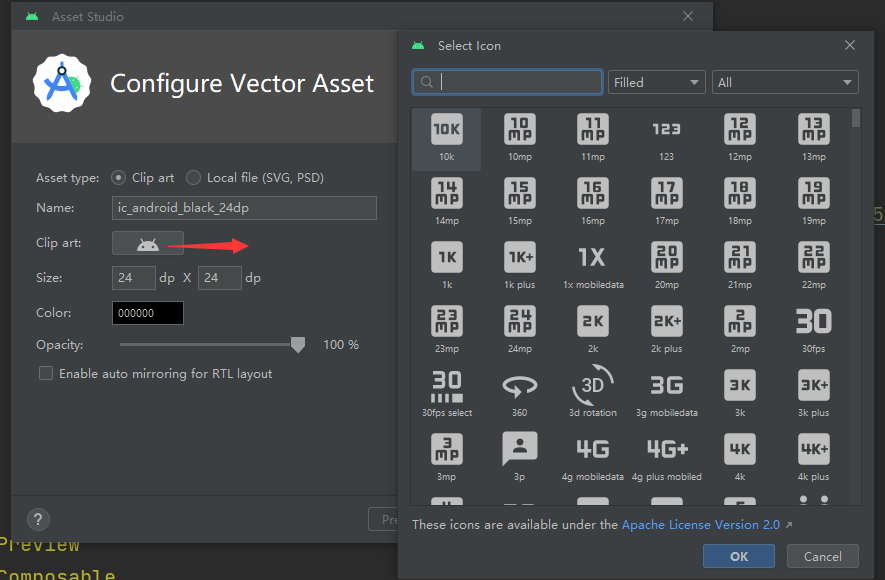
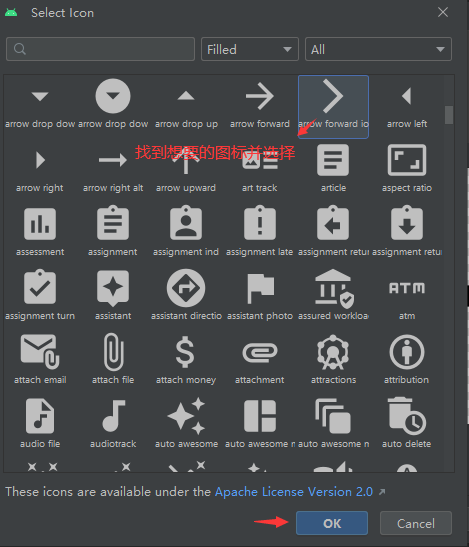
使用系统提供的图标,首先是找到想要用的 Icon:

imageVector

imagevector 的方式使用可参考 Jetpack Compose 入门: Image

Jetpack Compose 入门: Image 的一些补充说明:

Jetpack Compose 库,要引入 Compose 的版本,指定 compose-bom 即可,然后确定使用 material3 还是 material, material-icons-extended 等的版本不需要特别指定,代码如下:

1
2
3
implementation platform('androidx.compose:compose-bom:2023.05.00')
implementation("androidx.compose.material3:material3" )
implementation("androidx.compose.material:material-icons-extended")

简单的示例代码:

1
2
3
4
Image(
modifier = modifier.size(48.dp),
imageVector = androidx.compose.material.icons.Icons.Default.Add,
)

painter

用于绘制 main/res/drawable 目录下的图标,不仅可以使用官方提供的 Icon,还可以是其他想要使用的图标。

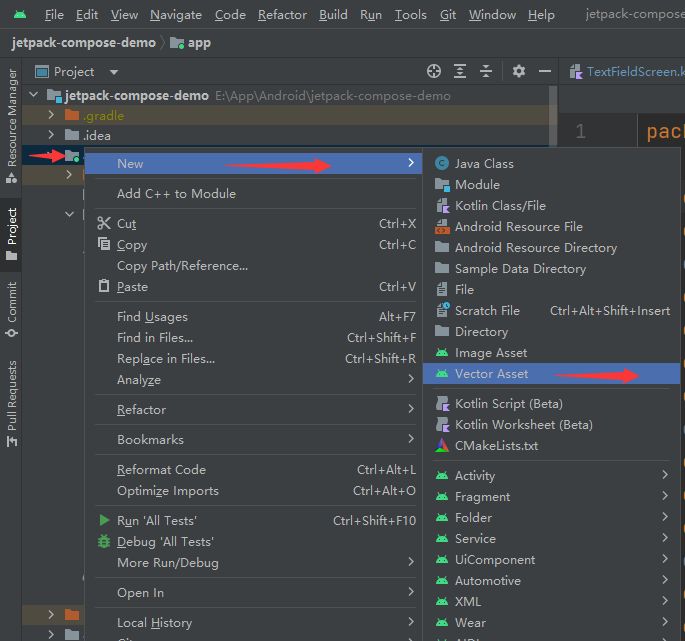
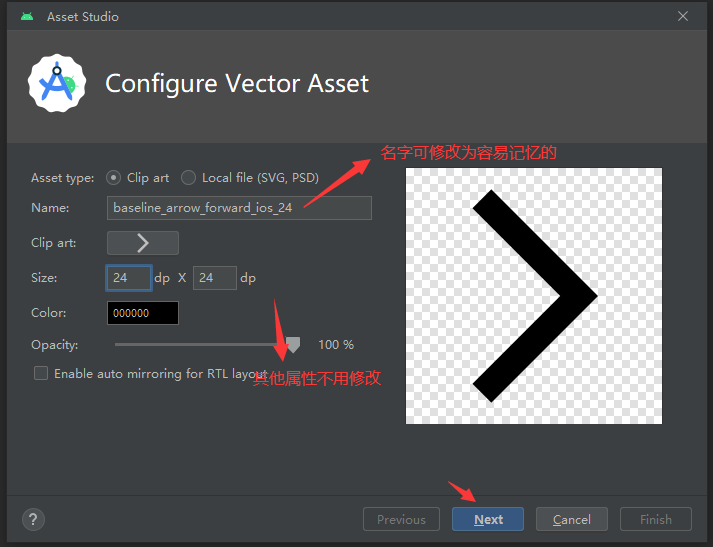
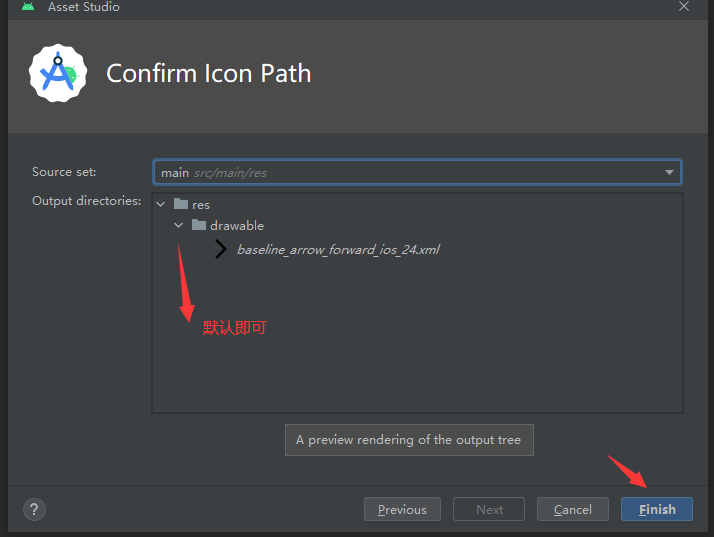
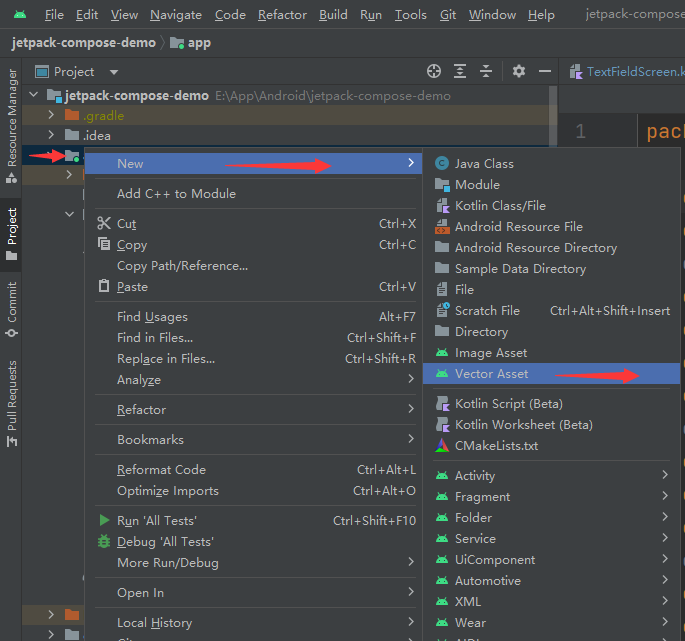
使用官方提供的 Icon,还需要做如下操作:

多少还是有些麻烦,使用官方提供的 Icon , 推荐以 imageVector 的方式。

如果是自己设计的图标,如果是矢量图,放在 main/res/drawable 目录下,如果是其他格式如png、webp 等,按分辨率设计多张分目录如 main/res/drawable-xhdpi 放置会更好。

示例代码:

1
Image(painter = painterResource(id = R.drawable.baseline_add_24), contentDescription = "painterResource")

Demo; https://github.com/hefengbao/jetpack-compose-demo.git

Jetpack Compose 入门:Icon

之前的两篇文章 Jetpack Compose 入门: ImageJetpack Compose 入门:Image 使用 Icon (vectorDrawables) 中写了使用 Image 组件显示图标,还有个 Icon 组件可以用来显示图标,示例代码:

1
2
3
4
5
6
7
8
9
10
11
12
13
14
15
16
17
18
19
20
21
22
23
24
25
26
27
28
29
@Composable
fun IconScreen(
modifier: Modifier = Modifier
) {
Column(
modifier = modifier.fillMaxWidth()
) {
Icon(
painter = painterResource(id = R.drawable.ic_launcher_foreground),
contentDescription = "",
modifier = modifier.size(100.dp),
tint = Color.Red
)

Icon(
imageVector = Icons.Default.Home,
contentDescription = "Home",
modifier = modifier.align(Alignment.CenterHorizontally),
tint = Color.Cyan
)

Icon(
bitmap = ImageBitmap.imageResource(R.drawable.ic_avatar),
contentDescription = "",
modifier = modifier,
tint = Color.Green
)
}
}

参数说明:

1、painterimageVectorbitmap 用于指定要显示的图标,painterimageVector 显示的是 ImageVector, 而 bitmap 显示的是 ImageBitmap,两者的区别请参考下方的文档及说明,尤其要注意的是 painterbitmap 显示的图标都在 drawable 目录下;

2、contentDescription:添加描述,可以为 null;

3、modifier :添加 Modifier 属性;

4、tint :修改 Icon 的颜色

参考文档:

ImageBitmap 与 ImageVector 对比

从这里生成的 Icon(xml 文件) 一定是 ImageVector,而 pngjpeg 等文件则为 ImageBitmap。

Demo:https://github.com/hefengbao/jetpack-compose-demo.git

Jetpack Compose 入门:使用 Coil (异步)加载(网络) Image (图片)以及圆角处理

Coil 是一个 Android 图片加载库,通过 Kotlin 协程的方式加载图片。

官方文档:https://coil-kt.github.io/coil/README-zh/

首先引入 Coil 包:

1
2
implementation("io.coil-kt:coil:2.4.0")
implementation("io.coil-kt:coil-compose:2.4.0")

Coil 提供了 AsyncImage 控件,直接使用即可:

1
2
3
4
5
6
7
8
9
10
11
12
13
14
15
16
17
18
19
20
21
22
23
24
25
26
27
28
29
30
31
32
33
34
35
36
37
38
39
40
41
42
43
44
45
46
47
48
49
50
51
52
53
54
55
56
57
58
59
60
61
@Composable
fun ImageScreen(
modifier: Modifier = Modifier
) {
Column(
modifier = modifier
.fillMaxWidth()
.scrollable(rememberScrollState(), Orientation.Vertical)
.padding(16.dp),
verticalArrangement = Arrangement.spacedBy(16.dp)
) {
AsyncImage(
model = "https://pic.616pic.com/ys_bnew_img/00/28/60/6p82GlZ565.jpg",
contentDescription = null,
modifier = modifier
.size(100.dp)
.clip(CircleShape),
onState = { state ->
when(state){
AsyncImagePainter.State.Empty -> {
// 如果图片链接不存在,这里可以设置提示
}
is AsyncImagePainter.State.Error -> {
// 如果加载出错,这里可先设置显示错误提示或图片
}
is AsyncImagePainter.State.Loading -> {
// 比如显示加载进度条等
}
is AsyncImagePainter.State.Success -> {
// 比如隐藏加载进度条等
}
}
},
contentScale = ContentScale.Inside,
alpha = 0.1f,
)

AsyncImage(
model = "https://pic.616pic.com/ys_bnew_img/00/28/60/6p82GlZ565.jpg",
contentDescription = null,
modifier = modifier
.size(100.dp)
.clip(CircleShape),
placeholder = painterResource(id = R.drawable.ic_launcher_background), // 占位符,即加载时显示的图像,可选
error = painterResource(id = R.drawable.ic_launcher_foreground), // 加载图片出错时显示的图像,可选
fallback = painterResource(id = R.drawable.ic_launcher_foreground), // 加载的图像链接不存在时指定要显示的图像,可选
onLoading = {
// 显示进度条等
},
onSuccess = {
// 隐藏进度条等
},
onError = {
// 隐藏进度条,错误提示等
},
alignment = Alignment.Center, // 图像对其位置,默认居中显示
contentScale = ContentScale.Fit, // 图像填充模式
alpha = 0.5f, // 设置透明度
)
}
}

Coil 加载图片时的圆角处理,使用 Modifierclip() 方法,官方提供了 CircleShape 处理显示为圆形,还可以使用 RoundedCornerShape(16.dp) 指定圆角大小。

示例代码:https://github.com/hefengbao/jetpack-compose-demo.git 中的 ImageScreen.kt

Jetpack Compose 入门:Button、OutlinedButton、TextButton、IconButton、FilledTonalButton、ElevatedButton

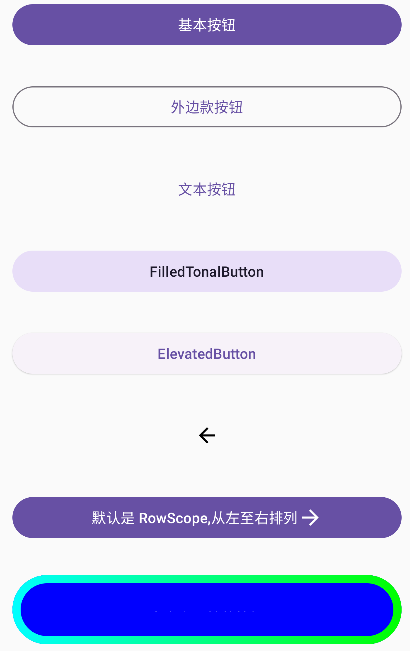
按钮 Button 是 material3(androidx.compose.material3.Button)组件,常用的还有 OutlinedButtonTextButtonIconButtonFilledTonalButtonElevatedButton

1
2
3
4
5
6
7
8
9
10
11
12
13
14
15
16
17
18
19
20
21
22
23
24
25
26
27
28
29
30
31
32
33
34
35
36
37
38
39
40
41
42
43
44
45
46
47
48
49
50
51
52
53
54
55
56
57
58
59
60
61
62
63
64
65
66
67
68
69
70
71
72
73
74
75
76
77
78
79
80
81
82
83
84
85
86
87
88
89
90
91
92
@Composable
fun ButtonScreen(
modifier: Modifier = Modifier
) {
Column(
modifier = modifier.fillMaxWidth()
) {
Button(
onClick = { /*TODO*/ },
modifier = modifier
.fillMaxWidth()
.padding(16.dp),
) {
Text(text = "基本按钮")
}

OutlinedButton(
onClick = { /*TODO*/ },
modifier = modifier
.fillMaxWidth()
.padding(16.dp),
) {
Text(text = "外边款按钮")
}

TextButton(
onClick = { /*TODO*/ },
modifier = modifier
.fillMaxWidth()
.padding(16.dp),
) {
Text(text = "文本按钮")
}

FilledTonalButton(
onClick = { /*TODO*/ },
modifier = modifier
.fillMaxWidth()
.padding(16.dp),
) {
Text(text = "FilledTonalButton")
}

ElevatedButton(
onClick = { /*TODO*/ },
modifier = modifier
.fillMaxWidth()
.padding(16.dp),
) {
Text(text = "ElevatedButton")
}

IconButton(
onClick = { /*TODO*/ },
modifier = modifier
.fillMaxWidth()
.padding(16.dp),
) {
Icon(imageVector = Icons.Default.ArrowBack, contentDescription = "返回")
}

Button(
onClick = { /*TODO*/ },
modifier = modifier
.fillMaxWidth()
.padding(16.dp),
) {
Text(text = "默认是 RowScope,从左至右排列")
Icon(imageVector = Icons.Default.ArrowForward, contentDescription = "")
}

Button(
onClick = { /*TODO*/ },
modifier = modifier
.fillMaxWidth()
.padding(16.dp),
enabled = true,
shape = ButtonDefaults.elevatedShape,
colors = ButtonDefaults.elevatedButtonColors(
containerColor = Color.Blue,
contentColor = Color.White,
disabledContainerColor = Color.Blue.copy(alpha = 0.5f),
disabledContentColor = Color.LightGray
),
elevation = null,
border = BorderStroke(8.dp, Brush.horizontalGradient(listOf(Color.Cyan, Color.Green))),
contentPadding = PaddingValues(32.dp)
) {
Text(text = "自定义属性的按钮")
}
}
}

基本属性:

1
2
3
4
5
6
7
8
9
10
11
12
13
@Composable
fun Button(
onClick: () -> Unit,
modifier: Modifier = Modifier,
enabled: Boolean = true,
interactionSource: MutableInteractionSource = remember { MutableInteractionSource() },
elevation: ButtonElevation? = ButtonDefaults.elevation(),
shape: Shape = MaterialTheme.shapes.small,
border: BorderStroke? = null,
colors: ButtonColors = ButtonDefaults.buttonColors(),
contentPadding: PaddingValues = ButtonDefaults.ContentPadding,
content: @Composable RowScope.() -> Unit
): Unit

参数:

enabled 是否启用或禁用;

elevation 高度;

shape 形状,ButtonDefaults.outlinedShapeButtonDefaults.textShapeButtonDefaults.filledTonalShapeButtonDefaults.elevatedShape,其实提供了对应的组件: OutlinedButtonTextButtonFilledTonalButtonElevatedButton

border 边框线;

colors 设置颜色,可以设置背景颜色、前景颜色、禁用状态和启动状态下的颜色;

contentPadding 内容内间距;

content 默认是 RowScope.() Row

Demo: https://github.com/hefengbao/jetpack-compose-demo.git

Jetpack Compose 入门:RadioButton、Checkbox、Switch

RadioButtonCheckboxSwitch 是 Material3 组件:androidx.compose.material3.Checkboxandroidx.compose.material3.RadioButtonandroidx.compose.material3.Switch

示例代码:

1
2
3
4
5
6
7
8
9
10
11
12
13
14
15
16
17
18
19
20
21
22
23
24
25
26
27
28
29
30
31
32
33
34
35
36
37
38
39
40
41
42
43
44
45
46
47
48
49
50
51
@Composable
fun RadioButtonCheckBoxSwitchScreen(
modifier: Modifier = Modifier
) {
Column(
modifier = modifier.fillMaxWidth(),
verticalArrangement = Arrangement.spacedBy(16.dp)
) {
val radioList = listOf<String>("苹果","芒果","结果")
var radioSelected: Int? by remember { mutableStateOf(null) }
val radioSelectedText = if (radioSelected != null){
"(${radioList[radioSelected!!]})"
}else{
"()"
}

Text(text = "那个不是水果?${radioSelectedText}")

radioList.forEachIndexed { index,item ->
Row(
modifier = modifier
.fillMaxWidth()
.clickable { radioSelected = index },
verticalAlignment = Alignment.CenterVertically
) {
RadioButton(selected = index == radioSelected, onClick = { radioSelected = index })
Text(text = item)
}
}

var checkboxChecked by remember { mutableStateOf(false) }

Row(
modifier = modifier.fillMaxWidth(),
verticalAlignment = Alignment.CenterVertically
){
Checkbox(checked = checkboxChecked, onCheckedChange = { checkboxChecked = it})
Text(text = "请阅读并同意《服务协议》")
}

var switchChecked by remember { mutableStateOf(false) }
Row(
modifier = modifier.fillMaxWidth(),
verticalAlignment = Alignment.CenterVertically,
horizontalArrangement = Arrangement.spacedBy(16.dp)
) {
Text(text = "开启消息通知")
Switch(checked = switchChecked, onCheckedChange = { switchChecked = it })
}
}
}

要点就是状态处理:

RadioButton:selected, onClick;

Checkbox:checked、onCheckedChange;

Switch:checked、onCheckedChange;

Jetpack Compose 入门:TopAppBar & BottomAppBar

TopAppBarMediumTopAppBarLargeTopAppBarCenterAlignedTopAppBar 用于的顶部 AppBar,BottomAppBar 用在底部的 AppBar。TopAppBar 主要是三部分,从左至右依次是:navigationIcontitleactions,BottomAppBar 一种是自己定义要显示的内容,一种是通过 actions 设置,并可以设置 floatingActionButton

示例代码:

1
2
3
4
5
6
7
8
9
10
11
12
13
14
15
16
17
18
19
20
21
22
23
24
25
26
27
28
29
30
31
32
33
34
35
36
37
38
39
40
41
42
43
44
45
46
47
48
49
50
51
52
53
54
55
56
57
58
59
60
61
62
63
64
65
66
67
68
69
70
71
72
73
74
75
76
@OptIn(ExperimentalMaterial3Api::class)
@Composable
fun AppBarScreen(
modifier: Modifier = Modifier
) {
Column (
modifier = modifier.fillMaxWidth(),
verticalArrangement = Arrangement.spacedBy(16.dp)
) {
TopAppBar(
title = {
Text(text = "8ug.icu")
},
navigationIcon = {
IconButton(onClick = { /*TODO*/ }) {
Icon(imageVector = Icons.Default.Home, contentDescription = null)
}
},
actions = {
IconButton(onClick = { /*TODO*/ }) {
Icon(imageVector = Icons.Default.Share, contentDescription = null)
}
IconButton(onClick = { /*TODO*/ }) {
Icon(imageVector = Icons.Default.Settings, contentDescription = null)
}
}
)

MediumTopAppBar(
title = {
Text(text = "8ug.icu")
}
)

LargeTopAppBar(
title = {
Text(text = "8ug.icu")
}
)

CenterAlignedTopAppBar(
title = {
Text(text = "8ug.icu")
}
)

BottomAppBar {
OutlinedTextField(value = "", onValueChange = {})
Button(onClick = { /*TODO*/ }) {
Text(text = "提交")
}
}

BottomAppBar(
actions = {
IconButton(onClick = { /*TODO*/ }) {
Icon(imageVector = Icons.Default.Share, contentDescription = null)
}
IconButton(onClick = { /*TODO*/ }) {
Icon(imageVector = Icons.Default.ThumbUp, contentDescription = null)
}
},
floatingActionButton = {
FloatingActionButton(onClick = { /*TODO*/ }) {
Icon(imageVector = Icons.Default.Edit, contentDescription = null)
}
}
)
}
}

@Preview
@Composable
private fun TopAppBarScreenPreview() {
AppBarScreen()
}

写 Preview 技巧,输入 prev 等出现提示按回车键。

Demo:https://www.8ug.icu/search/tags/jetpack-compose-tutorial 中的 AppBarScreen