compose 版本:
https://developer.android.google.cn/jetpack/androidx/releases/compose?hl=zh-cn
1
| implementation platform('androidx.compose:compose-bom:2023.05.00')
|
Text 是 androidx.compose.material3.Text 中的控件,用来显示文本内容,ClickableText 用于显示文本内容中部分内容需要添加点击事件。
1
2
3
4
5
6
7
8
9
10
11
12
13
14
15
16
17
18
19
20
21
22
23
24
25
26
27
28
29
30
31
32
33
34
35
36
37
38
39
40
41
42
43
44
45
46
47
48
49
50
51
52
53
54
55
56
57
58
59
60
61
62
63
64
65
66
67
68
69
70
71
72
73
74
| @Composable
fun TextScreen(
modifier: Modifier = Modifier
) {
val context = LocalContext.current
Column(
modifier = modifier.background(Color.White),
verticalArrangement = Arrangement.spacedBy(8.dp)
) {
Text(text = "Hello World")
Text(
text = "Hello World",
modifier = modifier.fillMaxWidth(),
textAlign = TextAlign.Center
)
Text(
text = "Hello World",
color = Color.Blue,
fontStyle = FontStyle.Italic,
fontFamily = FontFamily.Cursive,
fontWeight = FontWeight.ExtraBold,
fontSize = 32.sp
)
Text(
text = "可以点击的 Text",
modifier = modifier.clickable {
Toast.makeText(context,"点击了",Toast.LENGTH_SHORT).show()
}
)
Text(
text = "庙里有个老和尚和一个小和尚。有一天老和尚对小和尚说:“从前有座山.山里有座庙,庙里有个老和尚和一个小和尚,有一天老和尚对小和尚说:“从前有座山.山里有座庙,庙里有个老和尚和一个小和尚......““。",
maxLines = 1,
overflow = TextOverflow.Ellipsis
)
Text(text = AnnotatedString("Hello World", spanStyle = SpanStyle(color = Color.Cyan)))
ClickableTextSample(modifier = modifier)
}
}
@Composable
fun ClickableTextSample(
modifier: Modifier
) {
val tag = "ClickableText"
val text = buildAnnotatedString {
append("请阅读并同意")
pushStringAnnotation(tag = tag, annotation = "https://www.baidu.com")
withStyle(style = SpanStyle(color = Color.Blue)){
append("《服务条款》")
}
pop()
append("和")
pushStringAnnotation(tag,"https://www.bing.com")
withStyle(style = SpanStyle(color = Color.Blue)){
append("《隐私条款》")
}
pop()
}
val uriHandler = LocalUriHandler.current
ClickableText(text = text, onClick = {index ->
text.getStringAnnotations(tag, index, index).map {
uriHandler.openUri(it.item)
}
})
}
@Preview
@Composable
private fun TextScreenPreview() {
TextScreen()
}
|
知识点:
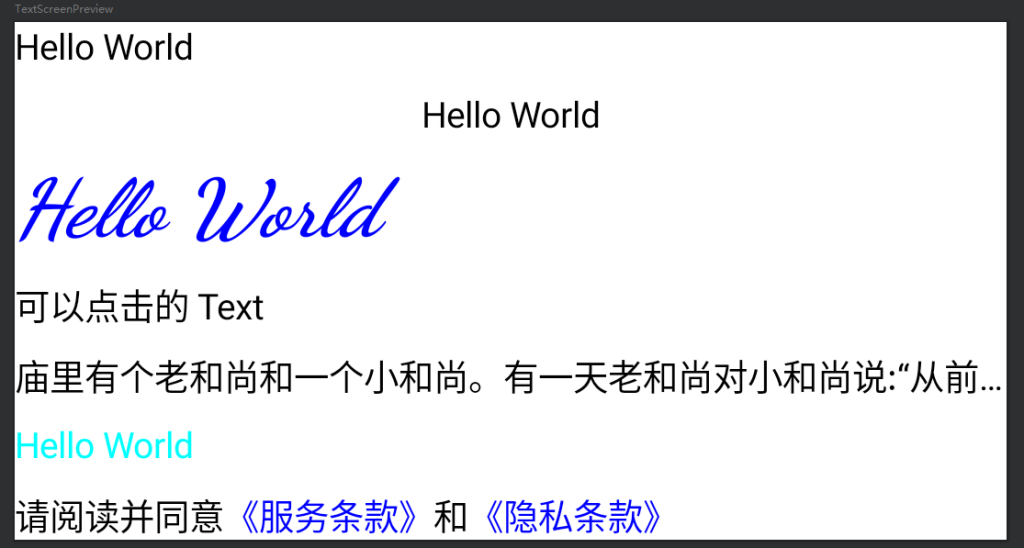
1、获取 context: val context = LocalContext.current;
2、textAlign 设置文本对齐方式,默认是向左对齐,可以通过 textAlign = TextAlign.Center 等设置对齐方式;
3、color = Color.Blue 设置文本颜色;
4、fontStyle = FontStyle.Italic 设置字体样式;
5、fontFamily = FontFamily.Cursive 设置字体;
6、fontWeight = FontWeight.ExtraBold 设置字体粗细;
7、fontSize = 32.sp 设置字体大小;
8、 maxLines = 1, overflow = TextOverflow.Ellipsis 设置最多显示几行,以及超过时的处理方式
9、ClickableText
示例代码: https://github.com/hefengbao/jetpack-compose-demo.git
提升:
https://juejin.cn/post/7057112301446365192